Applying custom icon packs to Samsung OneUI
Learn how to apply custom icon packs on Samsung devices using Good Lock and Theme Park.
By Vuk Andric
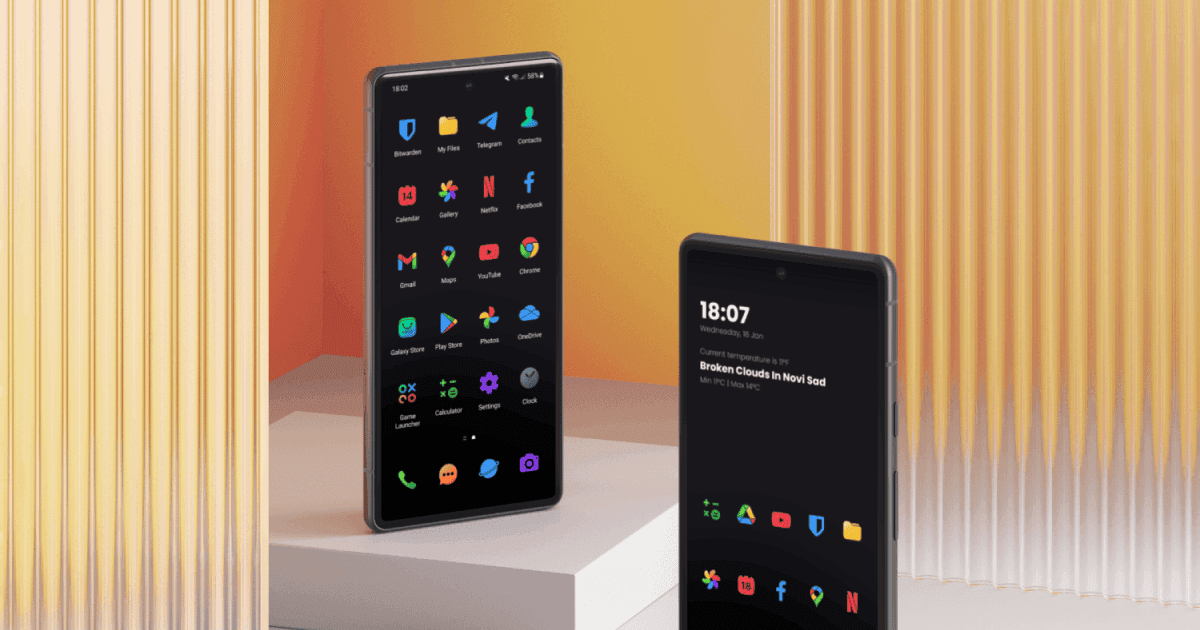
Samsung's OneUI doesn't natively support third-party icon packs, but with Good Lock's Theme Park module, you can apply any icon pack to your Samsung device. Here's how to do it.
- Install 'Good Lock' from the Galaxy Store (or 'NiceLock' if not available in your region).
- Open Good Lock and download the 'Theme Park' module.
- Launch Theme Park from Good Lock or your app drawer.
- Tap the '+' button to create a new icon theme.
- Choose 'Third Party' option and select your One4Studio icon pack.
- Customize icon shape and size if desired.
- Save the theme and apply it through Theme Park.
- Your icons will now appear across the home screen and app drawer.
Tip: Theme Park also lets you customize fonts, colors, and other system UI elements for a cohesive look. Browse our icon packs to find the perfect match for your Samsung device.